Flashback Express 7
User Manual
Downloading and Installing
Recording a Video
Recorder Window
Recorder Settings
Recording the Mouse Cursor
Starting and Stopping Recording
Recorder Control Bar
Advanced Recording Options
Annotating While Recording
Selecting What To Record
Recording on a computer with dual GPUs
Previewing a Recording
Editing a Project
Editing Basics
Navigating the Project Editor
Working with Media
The Timeline
The Video Canvas
Styling Media
Editing Preferences
Exploring Media
Videos
Images
Animations
Shapes
Backgrounds
Text
Titles
Audio
Voiceovers
Subtitles
Blurs
Flashback Pro Movies
Applying Effects
Exporting
Freeze Frame
Licensing Flashback Express 7
Free vs Licensed Use
Purchasing a Flashback Express 7 License
Registering a Flashback Express 7 license
Upgrading From Pro 5 or Express 6
Managing Your Subscriptions
Feature Credits
Registering on an offline PC
Deploying a license to multiple PCs
License Troubleshooting
Misc.
How To Guides
Make a clip from a recording
Replace a voiceover
Record a facecam video
Schedule a recording session
Highlight the mouse cursor
Edit audio for an imported video
How To Move a Project to a New Computer
Record a clear voiceover
Flashback Express 7 Quick Start Guide
Flashback Express 7 FAQs
Flashback Express 6
User Manual
Downloading and Installing
Getting Setup to Record
The Recorder Window
Recording the Screen
Recording Windows and Regions
Recording Sound
Recording a Webcam
Recording the mouse cursor
Recording Settings
Recording
The Recorder Control Bar
Starting, Pausing and Stopping a Recording
Discarding or Restarting a Recording
Saving your recording
Scheduling a recording
Auto-trimming
Editing and Uploading
The Video Window
The Edit & Upload Window
Making a Clip
Uploading a Video
Exporting to other formats
Exporting Audio
Adding Subtitles
Licensing
Flashback Express Free vs Licenced
Purchasing a Flashback Express 6 license
Registering a Flashback Express 6 license
Registering Flashback Express 6 on an offline PC
Deploying a Flashback Express 6 license to multiple PCs
Flashback Express License 6 Troubleshooting
Feature Credits for Transcrptions
Misc.
How To Guides
How to record a facecam video
How to make a clip
How to schedule a recording session
How to capture the mouse cursor
Flashback Express 6 Quick Start Guide
Flashback Express 6 FAQs
Camigo
User Manual
Getting Started
Camigo System Requirements
Downloading and installing
Setting up Camigo
Checking for Updates
Camigo Settings
Using Camigo
Customizing your video
Licensing
Support
Camigo Quick Start Guide
Camigo FAQs
Video Converter
User Manual
Getting Setup
Video Converter System Requirements
Downloading and installing Video Converter
Preferences
Free Trial
Using Video Converter
Converting Format
Format settings
Turbo Conversion
Creating Clips
Cropping a video
Applying Effects
Adding Watermarks
Changing Speed
Inserting Subtitles
Licensing Video Converter
Video Converter Quick Start Guide
Video Converter FAQs
Table of Contents
- All Categories
- Flashback Express 7
- User Manual
- Editing a Project
- Exporting
- Uploading Your Video
Uploading Your Video

When you have finished editing your project, you can upload a video of it directly to either YouTube or Google Drive. This saves you having to export a video file first and then manually uploading that.
To upload. simply click the Export button and then select either YouTube or Google Drive in the dropdown that appears.
Uploading To YouTube
When you upload to YouTube for the first time, you will need to connect Flashback Express to the YouTube account that you will upload to:
- After clicking the YouTube button on the Edit & Upload Window, click the Connect to YouTube button on the window that will appear.
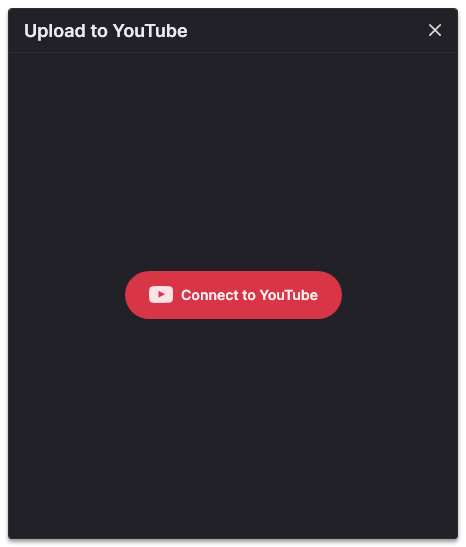
- Your browser should open to the YouTube login page. If it doesn't, click the Copy URL button and then paste the link into your browser instead.
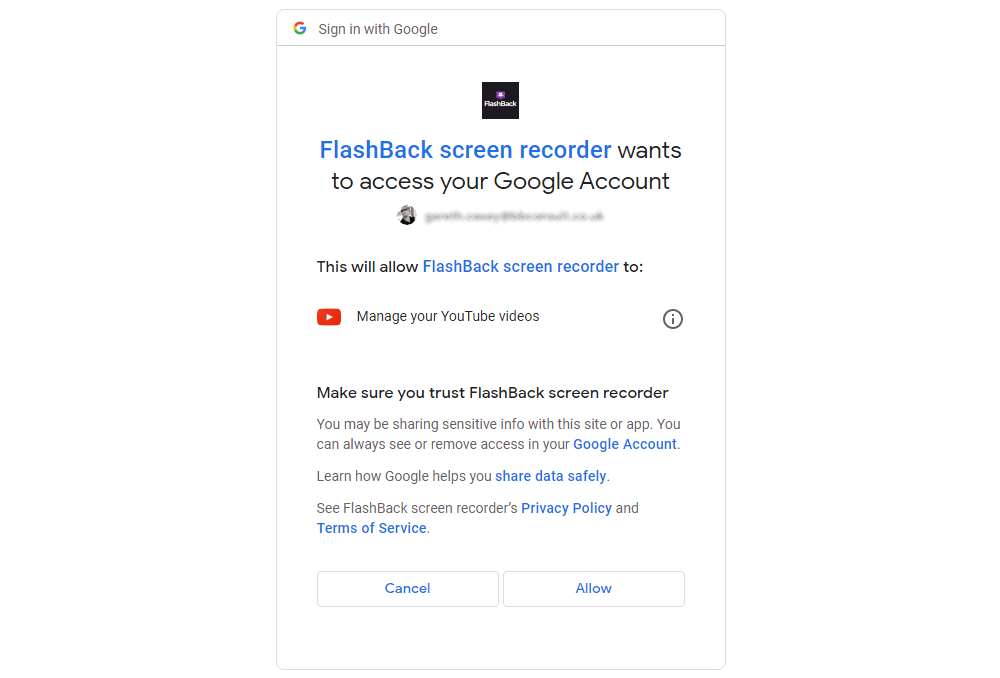
- Sign into the YouTube account that you want to upload to.
- Click the Allow button when asked to give Flashback Express access to manage your YouTube videos.
Once Flashback Express is connected to your YouTube account, or if you previously connected them, the Upload to YouTube Window will then appear. Your YouTube account name and avatar picture will be displayed in the top left corner.
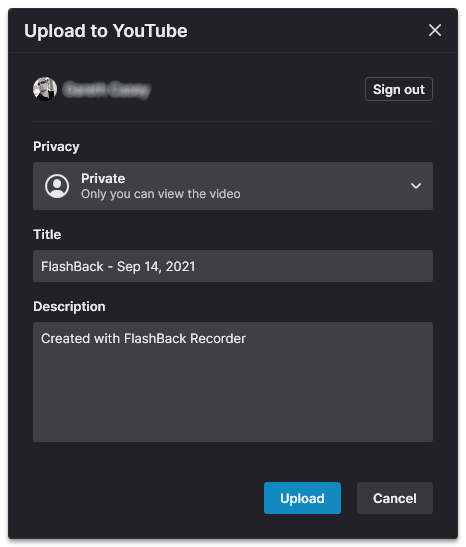
(You can change which YouTube account Flashback Express is connected to by clicking the Signout button in the top right corner of the Upload to YouTube Window and then repeating the above process for the new account)
You can then enter the details for your video:
- Select a Privacy setting to control who will be able to see your uploaded video.
Private videos can only be seen by you when you are logged into the account, Public videos can be seen by everyone and Unlisted videos can be seen by anyone who has the link to the video but they will not appear in YouTube searches or recommended lists. - Enter the Title and Description that will be displayed on YouTube.
- Click the Upload button to start uploading the video.
When the upload is complete, the link to your newly uploaded video will be displayed. Click the Copy link button and then paste the link into your browser to open your video on YouTube.
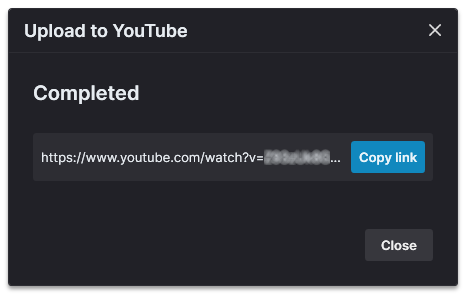
Please be aware that after the upload has completed, YouTube will then process the video before making it available to view. Depending on the size of the view, this may take a little time so your video may not be immediately viewable using the link.
Uploading to Google Drive
When you upload to Google Drive for the first time, you will need to connect Flashback Express to the Google account that you will upload to:
- After clicking the Google Drive button on the Edit & Upload Window, click the Connect to Google Drive button on the window that will appear.
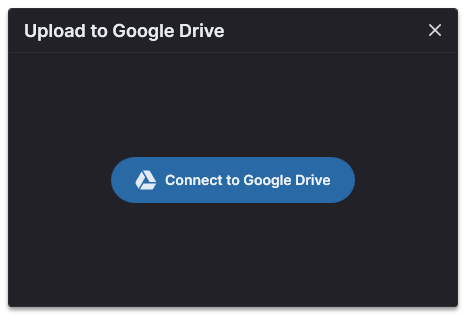
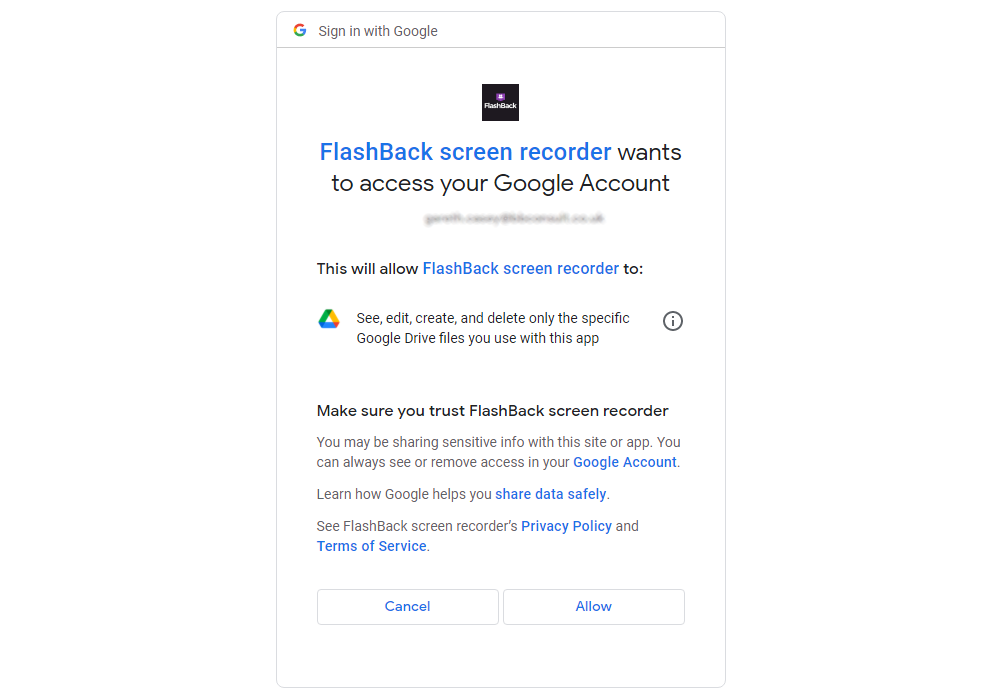
- Your browser should open to the Google login page. If it doesn't, click the Copy URL button and then paste the link into your browser instead.
- Sign into the Google account that you want to upload to.
- Click the Allow button when asked to give Flashback Express access to see, edit, create, and delete the specific files uploaded using FlashBack.
Once Flashback Express is connected to your Google Drive, or if you previously connected them, the Upload to Google Drive Window will then appear. Your Google account name and avatar picture will be displayed in the top left corner.
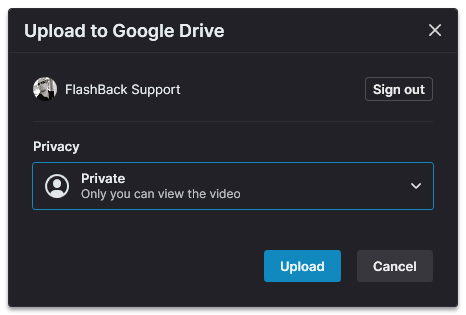
(You can change which Google account Flashback Express is connected to by clicking the Signout button in the top right corner of the Upload to Google Window and then repeating the above process for the new account)
You can then enter the details for your video file:
- Select a Privacy setting to control who will be able to see the file.
Private files can only be seen by you when you are logged into the account, Public files can be found and seen by anyone and Unlisted files can be seen by anyone who has the link to the file. - Click the Upload button to start uploading the video.
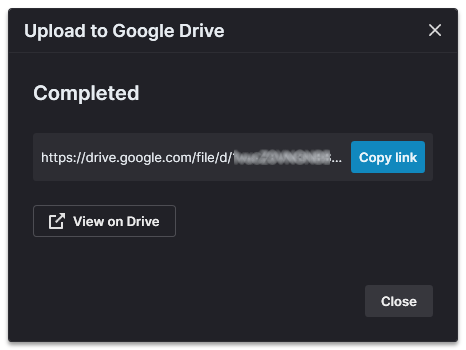
When the upload is complete, the file will be added to your Drive and a link to your newly uploaded video file will be displayed. Click the View on Drive button to go to the file on Google Drive. Or click the Copy link button and then paste the link into your browser instead.